How to Fix Core Web Vitals: A Developer's Guide
Fix LCP, CLS, and INP with real code examples. A developer-focused guide to improving Core Web Vitals in React and Next.js applications.
Why This Guide Exists
Most Core Web Vitals content is written by SEO consultants who can tell you what the metrics mean but not how to fix them in code. This guide is the opposite. We are developers who build web applications and fix performance problems in production. This is what that work actually looks like.
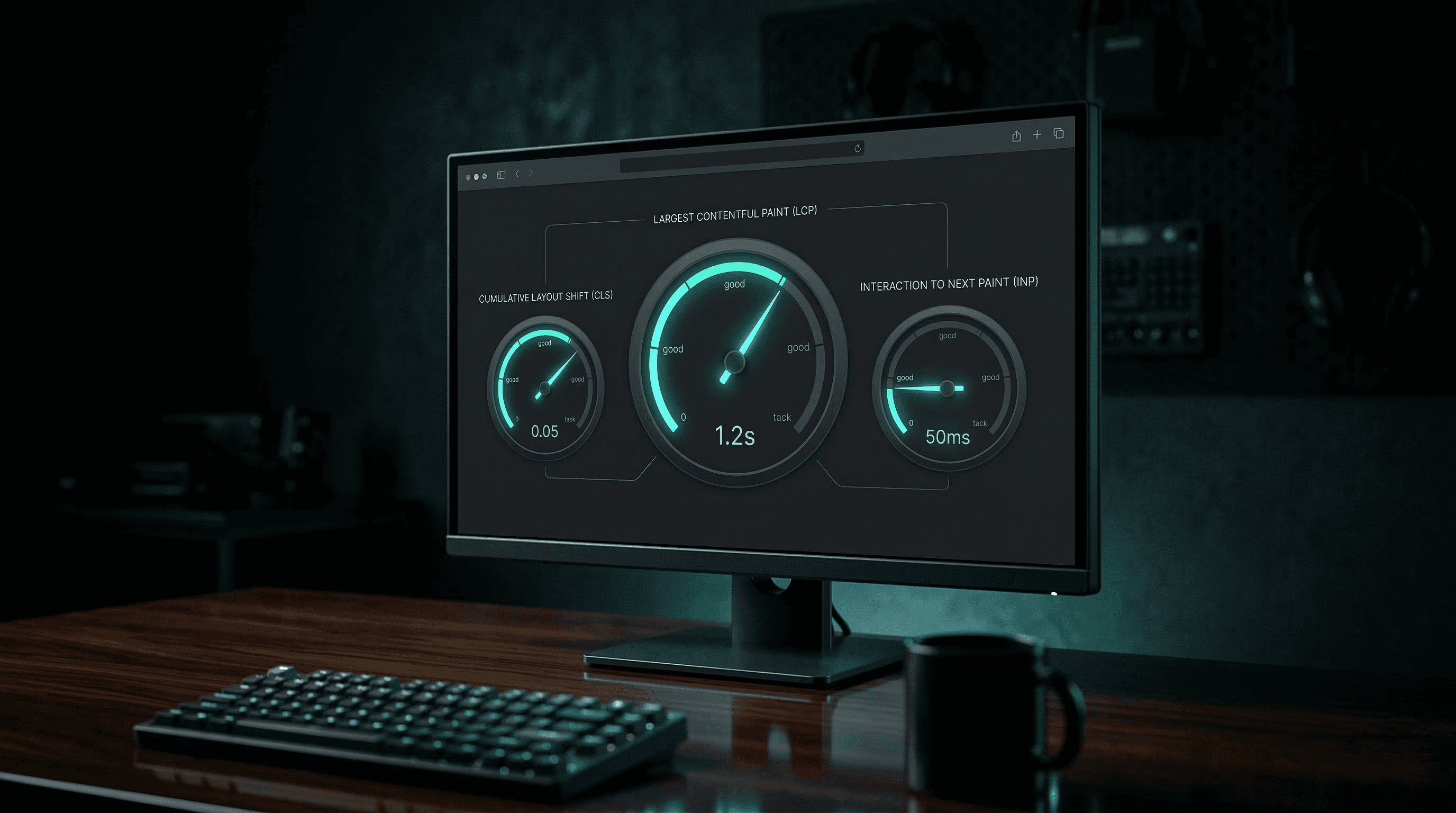
Core Web Vitals are three metrics Google uses to measure real-world user experience: how fast your page loads (LCP), how visually stable it is (CLS), and how quickly it responds to interaction (INP). They affect your search rankings, but more importantly, they affect whether people actually enjoy using your site. A page that takes 6 seconds to load and shifts around while you are trying to click something is not a page people come back to.
By the end of this guide, you will know how to measure your baseline, identify what is causing each metric to fail, and fix the most common issues with real code. The examples are focused on React and Next.js because that is what we build with, but the principles apply to any stack.
Prerequisites
- Google Chrome for DevTools and Lighthouse
- PageSpeed Insights for field data (bookmark this, you will use it a lot)
- A deployed website with real traffic. Lab measurements are useful for debugging, but field data is what Google uses for rankings. You need both.
- Familiarity with React or Next.js. The code examples use React patterns and Next.js APIs. You should be comfortable reading JSX and understanding component rendering.
Measuring Your Baseline
Before you fix anything, measure where you are. This step is not optional. Fixing performance without baseline measurements is guessing, and guessing is how you spend a week optimizing something that was not the problem.
Lab Data vs Field Data
Lab data comes from tools like Lighthouse. It runs in a controlled environment with simulated throttling. Useful for debugging because results are consistent and reproducible. Not useful for understanding what real users experience, because real users have different devices, network speeds, and usage patterns.
Field data comes from the Chrome User Experience Report (CrUX), which aggregates anonymized performance data from real Chrome users. This is what Google uses for search rankings. PageSpeed Insights shows both lab and field data.
Start with PageSpeed Insights. Enter your URL and look at the field data section. If your site does not have enough traffic for field data, use lab data as your starting point and revisit field data once you have traffic.
Understanding the Thresholds
Each Core Web Vital has a "Good," "Needs Improvement," and "Poor" threshold:
| Metric | Good | Needs Improvement | Poor |
|---|---|---|---|
| LCP (Largest Contentful Paint) | Under 2.5s | 2.5s to 4.0s | Over 4.0s |
| CLS (Cumulative Layout Shift) | Under 0.1 | 0.1 to 0.25 | Over 0.25 |
| INP (Interaction to Next Paint) | Under 200ms | 200ms to 500ms | Over 500ms |
Google evaluates at the 75th percentile of your field data. That means 75% of your users need to have a "Good" experience for the metric to pass. Your fastest users do not save you if your slower users are struggling.
Using Chrome DevTools
For detailed debugging, open Chrome DevTools and go to the Performance tab. Click the record button, interact with your page, then stop recording. The timeline shows exactly what happens during page load: when resources download, when the main thread is blocked, when layout shifts occur, and when the largest element renders.
The Performance Insights panel (different from the Performance tab) provides a more guided experience with specific recommendations. Both are useful.
Fixing LCP (Largest Contentful Paint)
LCP measures when the largest visible element finishes rendering. This is usually a hero image, a large heading, or a video poster. If your LCP is over 2.5 seconds, your page feels slow to users even if everything else loads quickly.
Identify Your LCP Element
First, figure out what your LCP element actually is. In Chrome DevTools, open the Performance tab, record a page load, then look for the "LCP" marker in the timeline. Hover over it to see which element was identified as the largest contentful paint.
Common LCP elements: hero images, above-the-fold background images, large headings with web fonts, and video posters.
Fix 1: Optimize Images
Images are the most common LCP bottleneck. If your LCP element is an image, check these things in order:
Use modern formats. WebP is 25-35% smaller than JPEG at equivalent quality. AVIF is even smaller. If you are serving JPEG or PNG for photographic images, you are sending more bytes than you need to.
In Next.js, the Image component handles format conversion automatically:
// Next.js Image component handles format, sizing, and lazy loading
import Image from "next/image";

<Image
  src="/hero.jpg"
  alt="Description of the hero image"
  width={1200}
  height={600}
  priority
  sizes="100vw"
/>
The priority prop is critical for LCP images. It disables lazy loading and adds a preload hint so the browser fetches the image as early as possible.
Size images correctly. Serving a 4000px wide image to a 1200px wide container wastes bandwidth. Use sizes to tell the browser what size it actually needs:
// Tell the browser the image is full-width on mobile,
// half-width on desktop
<Image
  src="/hero.jpg"
  alt="Description of the hero image"
  width={1200}
  height={600}
  priority
  sizes="(max-width: 768px) 100vw, 50vw"
/>
Preload the LCP image. If you are not using Next.js Image, add a preload link in your document head:
<!-- Preload the LCP image so the browser fetches it early -->
<link
  rel="preload"
  as="image"
  href="/hero.webp"
  type="image/webp"
/>
Fix 2: Optimize Web Fonts
If your LCP element is text styled with a custom font, font loading can delay when that text becomes visible.
Use font-display: swap. This tells the browser to show the text immediately in a fallback font, then swap to the custom font when it loads. The text is visible instantly.
/* Use swap so text is visible immediately */
@font-face {
  font-family: "CustomFont";
  src: url("/fonts/custom.woff2") format("woff2");
  font-display: swap;
}
In Next.js, use the built-in font optimization:
// Next.js font optimization with automatic preloading
import { Inter } from "next/font/google";

const inter = Inter({
  subsets: ["latin"],
  display: "swap",
});
Preload your font files. Add a preload link for your most critical font weight:
<!-- Preload your primary font weight -->
<link
  rel="preload"
  as="font"
  href="/fonts/custom.woff2"
  type="font/woff2"
  crossorigin
/>
Fix 3: Reduce Server Response Time
If your Time to First Byte (TTFB) is over 800ms, your LCP will struggle regardless of how optimized your images and fonts are. The page cannot render until the HTML arrives.
Common fixes:
- Use a CDN for static assets and consider edge rendering for dynamic pages
- Enable compression (Brotli or gzip) on your server
- Cache aggressively. Static pages should have long cache lifetimes. Dynamic pages should use stale-while-revalidate patterns.
In Next.js, server components and static generation handle most of this automatically. If your pages are server-rendered on every request and the data does not change frequently, switch to static generation or ISR:
// Static generation with revalidation every 60 seconds
export const revalidate = 60;

export default async function Page() {
  const data = await fetchData();
  return <PageContent data={data} />;
}
Fix 4: Eliminate Render-Blocking Resources
CSS and synchronous JavaScript in the document head block rendering. The browser cannot paint anything until these resources download and execute.
Inline critical CSS. The CSS needed for above-the-fold content should be inlined in the HTML so it does not require a separate network request. Next.js does this automatically in production builds.
Defer non-critical JavaScript. Third-party scripts (analytics, chat widgets, A/B testing) should load after the page is interactive:
<!-- Defer non-critical scripts -->
<script src="https://analytics.example.com/script.js" defer></script>
Fixing CLS (Cumulative Layout Shift)
CLS measures how much the page layout shifts after initial render. A CLS over 0.1 means elements are moving around while users are trying to read or click. It is the metric most directly tied to frustration.
Identify Layout Shifts
In Chrome DevTools, open the Performance tab and record a page load. Look for the "Layout Shift" entries in the Experience row. Click on one to see which elements shifted, by how much, and what caused it.
You can also enable the "Layout Shift Regions" rendering option in DevTools (Rendering tab, check "Layout Shift Regions"). This highlights shifted areas in blue in real time.
Fix 1: Set Explicit Dimensions on Images and Videos
The most common CLS cause. When an image loads without width and height attributes, the browser does not know how much space to reserve. The image loads, the browser calculates the size, and everything below it shifts down.
// Always include width and height so the browser
// reserves the correct space before the image loads
<Image
  src="/photo.jpg"
  alt="Team photo"
  width={800}
  height={450}
/>
For responsive images, use the aspect-ratio CSS property as a fallback:
/* Reserve space for images with a known aspect ratio */
.responsive-image {
  width: 100%;
  height: auto;
  aspect-ratio: 16 / 9;
}
Fix 2: Reserve Space for Dynamic Content
Ads, embeds, cookie banners, and lazy-loaded content all cause layout shifts if they push existing content around when they appear.
Cookie banners and notification bars should overlay the page (position fixed or sticky) rather than inserting into the document flow.
Skeleton screens for async content reserve the space before data loads:
// Skeleton reserves the same space as the final content
function UserCardSkeleton() {
  return (
    <div className="user-card" style={{ height: 120 }}>
      <div className="skeleton-avatar" />
      <div className="skeleton-text" />
      <div className="skeleton-text skeleton-text-short" />
    </div>
  );
}

function UserCard({ userId }: { userId: string }) {
  const { data, isLoading } = useUser(userId);
  if (isLoading) return <UserCardSkeleton />;
  return (
    <div className="user-card">
      <img src={data.avatar} alt="" width={48} height={48} />
      <h3>{data.name}</h3>
      <p>{data.role}</p>
    </div>
  );
}
Fix 3: Fix Font Loading Shifts
When a web font loads and replaces the fallback font, text reflows because the fonts have different metrics. This causes layout shifts.
Use font-display: optional. Unlike swap, this only uses the custom font if it loads within a very short window. If it does not, the fallback stays for that page view. No swap, no shift. The tradeoff is that some users might not see your custom font on first visit.
Use size-adjust for closer fallback matching. This CSS property adjusts the fallback font size to match the custom font metrics more closely, minimizing the shift when the swap happens:
/* Adjust fallback font to match custom font metrics */
@font-face {
  font-family: "Fallback";
  src: local("Arial");
  size-adjust: 105%;
  ascent-override: 90%;
  descent-override: 20%;
  line-gap-override: 0%;
}
Next.js handles this automatically when you use next/font. It generates the size-adjust values for you.
Fixing INP (Interaction to Next Paint)
INP measures the delay between a user interaction (click, tap, key press) and the next visual update. If your INP is over 200ms, interactions feel laggy. Users click a button and nothing happens for a perceptible moment. That moment is where trust erodes.
Identify Slow Interactions
In Chrome DevTools, the Performance tab shows individual interactions. Record yourself using the page, then look for long tasks (gray bars over 50ms) that coincide with your interactions.
You can also use the Web Vitals extension to see INP measurements in real time as you interact with the page.
Fix 1: Break Up Long Tasks
The browser cannot update the screen while JavaScript is executing on the main thread. If a click handler runs for 300ms, the user sees nothing for 300ms.
Use startTransition for non-urgent updates:
// Mark non-urgent state updates as transitions
// so they don't block the visual response
import { startTransition, useState } from "react";

function SearchPage() {
  const [query, setQuery] = useState("");
  const [results, setResults] = useState([]);

  function handleSearch(value: string) {
    setQuery(value);
    startTransition(() => {
      setResults(filterResults(value));
    });
  }

  return (
    <>
      <input
        value={query}
        onChange={(e) => handleSearch(e.target.value)}
      />
      <ResultsList results={results} />
    </>
  );
}
The input updates immediately. The expensive filtering runs without blocking the visual feedback.
Use requestAnimationFrame for visual feedback first:
// Show immediate feedback, then do the heavy work
function handleClick() {
  setButtonState("loading");

  requestAnimationFrame(() => {
    processExpensiveOperation();
    setButtonState("done");
  });
}
Fix 2: Reduce Hydration Cost
In Next.js and other SSR frameworks, hydration is the process of making server-rendered HTML interactive. During hydration, all your component code runs, event handlers attach, and state initializes. If hydration takes too long, the page looks loaded but does not respond to clicks.
Use React Server Components. Components that do not need interactivity (layouts, static content, data display) should be server components. They render on the server and send HTML to the client without any JavaScript. Less JavaScript means faster hydration.
Lazy load below-the-fold interactive components:
// Only load the component JavaScript when it's needed
import dynamic from "next/dynamic";

const CommentsSection = dynamic(
  () => import("@/components/CommentsSection"),
  { ssr: false }
);
Defer non-critical third-party scripts. Analytics, chat widgets, and tracking scripts all compete with your application code for main thread time during page load:
// Load third-party scripts after the page is interactive
import Script from "next/script";

<Script
  src="https://analytics.example.com/script.js"
  strategy="lazyOnload"
/>
Fix 3: Optimize Event Handlers
Heavy computation inside event handlers directly causes INP failures.
Debounce expensive handlers:
// Debounce search input to avoid filtering on every keystroke
import { useDeferredValue, useState } from "react";

function SearchInput() {
  const [query, setQuery] = useState("");
  const deferredQuery = useDeferredValue(query);

  return (
    <>
      <input
        value={query}
        onChange={(e) => setQuery(e.target.value)}
        placeholder="Search..."
      />
      <SearchResults query={deferredQuery} />
    </>
  );
}
Virtualize long lists. Rendering 1,000 DOM nodes makes every interaction slow because the browser has to recalculate layout for all of them. Use virtualization to render only the visible items:
// Only render the items currently in the viewport
import { useVirtualizer } from "@tanstack/react-virtual";

function VirtualList({ items }: { items: string[] }) {
  const parentRef = useRef<HTMLDivElement>(null);
  const virtualizer = useVirtualizer({
    count: items.length,
    getScrollElement: () => parentRef.current,
    estimateSize: () => 50,
  });

  return (
    <div ref={parentRef} style={{ height: 400, overflow: "auto" }}>
      <div style={{ height: virtualizer.getTotalSize() }}>
        {virtualizer.getVirtualItems().map((virtualItem) => (
          <div
            key={virtualItem.key}
            style={{
              position: "absolute",
              top: virtualItem.start,
              height: virtualItem.size,
              width: "100%",
            }}
          >
            {items[virtualItem.index]}
          </div>
        ))}
      </div>
    </div>
  );
}
Verifying Your Improvements
After making changes, measure again. Compare against your baseline.
- Run Lighthouse on the same pages you measured before. Compare scores directly.
- Check PageSpeed Insights for field data. Note that field data takes 28 days to fully update because it aggregates real user data over a rolling window. Lab data updates immediately.
- Use the Web Vitals library for continuous monitoring in production:
# Install the web-vitals library for real user monitoring
npm install web-vitals
// Report Core Web Vitals to your analytics
import { onCLS, onINP, onLCP } from "web-vitals";
onLCP(console.log);
onCLS(console.log);
onINP(console.log);- Set up a performance budget. Decide on thresholds and alert when they are exceeded. This prevents regressions from creeping back in.
Common Questions
What people usually ask when fixing Core Web Vitals.
Field data in PageSpeed Insights and Search Console uses a 28-day rolling average from the Chrome User Experience Report. After deploying fixes, expect 2-4 weeks before field data reflects the improvements. Lab data updates immediately, so you can verify fixes right away in Lighthouse.
Yes, but they are one of many ranking signals. Google has confirmed that Core Web Vitals are part of the page experience signals used for ranking. However, content relevance still dominates. A page with great content and mediocre performance will generally outrank a page with perfect performance and thin content. That said, when two pages are equally relevant, performance can be the tiebreaker.
Lighthouse runs on your machine with a fast connection. Your real users might be on slower devices and networks. Field data reflects the 75th percentile of actual user experiences, which includes people on budget phones with 3G connections. Optimize for real users, not for your development machine.
Fix whatever is failing first. If only LCP is red, focus on LCP. If everything is yellow, start with the metric closest to the "Good" threshold since it will be easiest to push over the line. Getting all three to "Good" matters for the full SEO benefit, but any improvement helps user experience regardless of the ranking impact.
Yes. SPAs handle navigation client-side, so subsequent page loads are fast but the initial load often suffers because the browser has to download, parse, and execute the entire application before rendering anything. Server-side rendering (Next.js, Remix) solves this by sending HTML first and hydrating it into an interactive app. If your SPA has poor Core Web Vitals, SSR is usually the highest-impact fix.